Easily sync calendars across your rental listings in just 15 minutes. Choose a master calendar and eliminate double bookings today!
The fastest way to sync calendars across listings is to pick one master scheduling source, either Hauzed's built-in visit scheduling or a dedicated Google Calendar or Outlook calendar, and configure property-specific availability rules inside it. Every other connection, including iCal (.ics) exports, flows from that single source. Your immediate next step: open Hauzed, enable visit scheduling for each active property, and connect your Google or Outlook account. That takes roughly 15 minutes and eliminates the most common cause of double bookings.
Key takeaways
Synchronising viewing calendars across listings reliably requires one master scheduling source, property-level availability rules, and a short verification routine after every configuration change.
Point
Details
One master source
Choose Hauzed-native scheduling or a single Google/Outlook calendar and route everything through it.
.ics is a fallback
iCal feeds poll at intervals and introduce delays; use two-way API connections for time-sensitive bookings.
Auto-block prevents overlaps
Enable auto-block mode in Hauzed so confirmed visits immediately close that slot to further requests.
Role separation protects data
Restrict two-way calendar write access to admins; agents and owners get read or manage access only.
Hauzed as control point
Hauzed's visit scheduling, team workflows, and calendar connections reduce manual coordination across multiple listings.
Your 10–20 minute checklist to get calendar sync working
Run through these steps in a single session. Each one builds on the last, so the order matters.
Choose your master calendar (2 min). Decide now: Hauzed-native scheduling, Google Calendar, or Outlook. One source only. Write it down.
List every active property (2 min). Open your Hauzed dashboard and confirm which listings need visit scheduling enabled. Cross-reference with any properties you manage outside Hauzed.
Connect Google Calendar or Outlook (5 min). In Hauzed account settings, authenticate your calendar account. Grant two-way access so confirmed visits write back to your external calendar automatically.
Set property-level availability rules (3 min). For each listing, define allowed viewing days, earliest and latest slots, and minimum notice window. Centralising these defaults reduces repetitive setup across a growing portfolio.
Configure visit duration and buffer (2 min). A visit duration with a buffer period is a practical starting point for most residential properties. Agencies running back-to-back viewings often extend the buffer to 20 minutes.
Export an .ics feed as a fallback (2 min). Copy the Hauzed .ics URL for each property and paste it into any secondary calendar that needs read-only visibility. Treat this as a backup, not your primary connection.
Run one test booking (4 min). Request a viewing on a test listing and confirm the event appears in Hauzed, your Google or Outlook calendar, and the .ics feed within a few minutes.
Pro Tip:Set a recurring 10-minute calendar review every Monday morning. A quick scan of the week's confirmed visits across all listings catches any missed sync before a tenant shows up to an empty property.
What are your realistic options for syncing calendars?
Four methods cover the vast majority of landlord and agency setups. Each has a different risk profile.
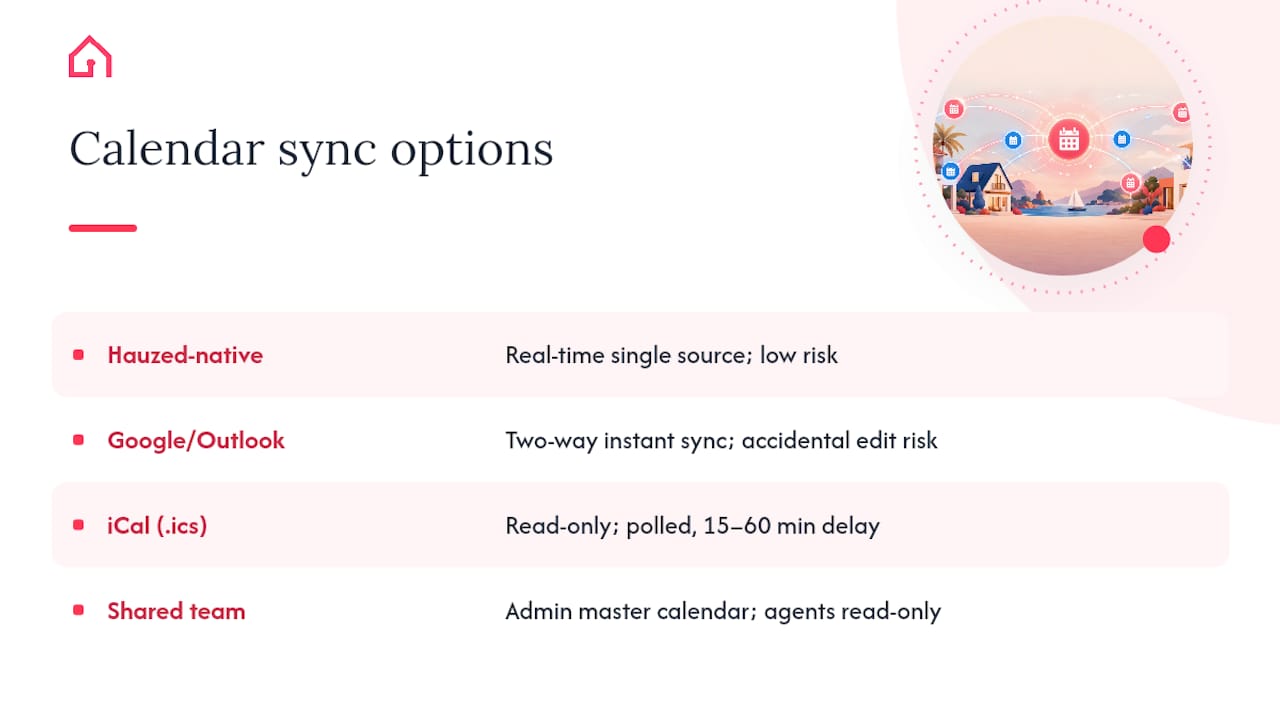
Hauzed-native scheduling is the cleanest option. Availability rules, visit confirmations, cancellations, and reschedules all live in one place. There is no polling delay and no risk of a third-party connection dropping. AI scheduling systems can enforce per-property rules, offer available times instantly, and automate confirmations, which is exactly what Hauzed's visit scheduling is designed to do. Best for: any landlord or agency already using Hauzed as their primary workflow.
Google Calendar or Outlook two-way sync adds visibility for agents who live in their inbox. A confirmed Hauzed visit appears in Google Calendar within seconds; a block added in Outlook propagates back to Hauzed. The risk is accidental edits: anyone with write access to the shared calendar can move or delete events. Restrict edit permissions to admins only.
iCal (.ics) import/export works as a read-only fallback. iCal feeds are polled at intervals and do not provide true real-time synchronisation, so a cancellation made at 9:00 AM may not appear in a subscribed calendar until the next poll cycle, sometimes 15–60 minutes later. Use .ics for secondary visibility, never as the authoritative source for a time-sensitive booking.
A shared team calendar via CalDAV or company Outlook suits agencies with multiple agents. One admin-owned calendar acts as the master; individual agents subscribe with read access. Changes flow from the master outward, not from individual agent calendars inward. This prevents conflicting edits from two agents working the same property.
For a single-property landlord, Hauzed-native scheduling plus a personal Google Calendar connection is sufficient. For a multi-property agency, a shared team calendar as master, connected to Hauzed and with .ics feeds for any external tools, gives the best balance of control and visibility.
How to set up synchronised visit scheduling in Hauzed
Follow these steps in sequence. Steps 1–3 are one-time setup; steps 4–7 repeat per property.
Set team roles. In your Hauzed account, assign roles before touching any calendar settings. Recommended: owner gets view-only, agents get schedule and manage access, admins connect and disconnect calendars. This prevents accidental overwrites later.
Enable visit scheduling. Navigate to each property's settings and activate the visit scheduling feature. If you manage multiple listings, Hauzed's bulk publishing tools let you apply default scheduling settings across similar properties in one action rather than repeating the process listing by listing.
Connect your master calendar. Go to account-level integrations and authenticate Google Calendar or Outlook. Choose two-way sync. Hauzed writes confirmed visits to your external calendar and reads blocks back from it.
Create property-specific availability rules. For each listing, set: allowed days (e.g., Tuesday to Saturday), earliest slot (e.g., 09:00), latest slot (e.g., 18:00), and minimum notice (e.g., 24 hours). Configuring these rules once and reusing templates for similar listings saves time and avoids per-listing errors.
Set visit duration and auto-block mode. Choose a default visit duration (30 minutes is standard) and a buffer (15 minutes minimum). Enable auto-block so that a confirmed visit immediately closes that slot to further requests.
Configure notifications and attendees. Decide who receives confirmation emails: the agent, the property owner, or both. Add the owner as a notification-only recipient rather than a calendar editor.
Verify immediately. Book a test visit on a non-live listing. Confirm it appears in Hauzed's calendar view, your Google or Outlook calendar, and the .ics feed within five minutes.
Pro Tip:Build one template property with your preferred defaults, then duplicate it when adding new listings. This cuts per-property setup time significantly and keeps visit durations and buffers consistent across your portfolio.
Pro Tip:Avoid manual overrides directly in Google Calendar or Outlook. Always make changes inside Hauzed first, then let the sync propagate. Manual edits in external calendars can create ghost events that Hauzed does not recognise.
How do you test that your calendar sync is actually working?
Run these four scenarios after setup. Each one has a clear pass condition.
Single-showing booking. Request a viewing on a live test listing. Pass: the confirmed event appears in Hauzed, Google/Outlook, and the .ics feed within five minutes. Fail: event missing from one or more destinations. Fix: check the calendar connection in account settings and reauthenticate if needed.
Overlapping request. With one slot already confirmed, submit a second request for the same time. Pass: Hauzed rejects the second request automatically. Fail: both requests show as confirmed. Fix: verify that auto-block mode is enabled for that property.
Owner block. Add a manual block directly in Hauzed (not in Google Calendar). Pass: the slot disappears from the available times shown to prospective tenants. Fail: the slot remains bookable. Fix: confirm the block was saved at property level, not just in the external calendar.
Reschedule and cancellation propagation. Cancel a confirmed visit in Hauzed. Pass: the event is removed from Google/Outlook and the .ics feed within the next poll cycle. Fail: the cancelled event persists in one calendar. Fix: for Google/Outlook, check two-way sync permissions; for .ics, note the polling delay and treat it as expected behaviour.
If Google/Outlook events are not appearing: reauthenticate the account connection in Hauzed settings.
If .ics is stale: manually trigger a refresh in the subscribing calendar app, then wait one full poll cycle before re-testing.
If auto-block is not firing: confirm the feature is enabled at property level, not just at account level.
Common pitfalls and how to fix them quickly
Most sync failures trace back to one of six causes.
Duplicate calendar connections. You connected the same Google account twice, once at account level and once at property level. Result: every event appears twice. Fix: remove the property-level connection and keep only the account-level one.
Delayed .ics polling. A cancellation made in Hauzed has not yet appeared in a subscribed external calendar. This is expected behaviour, not a bug. Treat .ics as a fallback channel and identify high-volume or short-lead-time properties where a real-time two-way connection is worth prioritising instead.
Manual overrides in external calendars. An agent edited a visit directly in Google Calendar. Hauzed did not receive the change. Fix: delete the manually edited event in Google Calendar, then make the correct change inside Hauzed.
Permission errors. Hauzed lost write access to the connected Google or Outlook account, often after a password change. Fix: reauthenticate the account in Hauzed integrations settings.
Timezone mismatches. Your Hauzed account timezone differs from the connected calendar's timezone. A 10:00 AM visit appears as 09:00 AM in Google Calendar. Fix: standardise the timezone at Hauzed account level and confirm it matches your calendar app's setting.
Duplicate team accounts. Two agents connected their personal Google accounts to the same property. Fix: assign one admin-owned calendar as the master and remove individual agent connections.
Best practices for viewings and availability management
Consistent policies prevent most scheduling friction before it starts.
Set a default buffer of at least 15 minutes between viewings. This gives agents travel time and tenants a clear exit before the next group arrives.
Use standard visit durations across similar property types. Consistency makes it easier to batch viewings and spot gaps in the schedule.
Require a minimum 24-hour notice window for all new booking requests. This protects owner privacy and gives agents time to prepare.
Use verified tenant profiles to vet who attends a viewing. Hauzed's identity verification reduces the risk of no-shows from unverified or low-intent enquiries.
Keep public invite details minimal. Share the property address only in the confirmed booking notification, not in the initial invite. This protects the property and the owner.
Pro Tip:When you have multiple viewing requests for the same property on the same day, batch them into 30-minute slots with a shared end time. This lets you complete more viewings per visit and, as coordinated showing pipelines show, increases the number of viewings agents complete per day, which directly reduces vacancy periods.
Who should control calendar edits and permissions?
Role clarity is the single most effective way to prevent accidental blocks and conflicting edits.
Owner (view-only). The property owner can see confirmed visits but cannot edit or cancel them. This prevents owners from accidentally removing agent-booked slots.
Agent (schedule and manage). Agents can create, reschedule, and cancel visits within the rules set by the admin. They cannot connect or disconnect calendar integrations.
Admin (full access). Only admins connect external calendars, change availability rules, and grant or revoke team permissions. Limit this role to one or two people per agency.
Maintenance (block times only). A maintenance contact can add blocks for repairs or inspections but cannot view tenant details or manage visit requests.
Grant two-way calendar permissions only to the admin-owned master calendar. Individual agent calendars should subscribe with read-only access. Two-way access for multiple users creates a race condition where two edits conflict and the last one wins, often silently. Review the Hauzed AI team tools for role-based workflow options that support this separation.
Audit logs are your safety net. After any suspected sync failure, check the recent activity log in Hauzed to identify which account made the last change and when. This makes it straightforward to revert a manual override without guessing.
Troubleshooting steps to run before you contact support
Work through this list in order. Most issues resolve by step 4.
Confirm your master calendar. Open Hauzed settings and verify which external calendar is connected. If it shows "disconnected", that is your answer.
Check connected accounts. Navigate to integrations and confirm the Google or Outlook account listed is the correct one and shows an active status.
Reproduce the failure on a test listing. Create a test visit on a non-live property and observe whether the failure repeats. This isolates whether the problem is account-wide or property-specific.
Reauthenticate. Disconnect and reconnect the calendar account. This resolves the majority of permission-related failures.
Check .ics refresh history. If the issue is a stale .ics feed, open the subscribing calendar app and force a manual refresh. Note the timestamp of the last successful poll.
Capture screenshots and timestamps. Before contacting support, record: your Hauzed account ID, the affected property ID, the event UID from the calendar entry, your account timezone, and the exact time the failure occurred.
Escalate to support if you see repeated missed cancellations after reauthentication, or if sync delays persist across multiple properties after a full reconnection. Systemic delays that survive a reauth usually indicate a platform-level issue rather than a configuration error.
How does automated conflict detection work for rental calendars?
Automated conflict detection means the system checks for overlapping bookings before confirming a visit, rather than relying on an agent to spot the clash manually. In Hauzed, enabling auto-block mode on a property means that the moment a visit is confirmed, that slot is closed to all further requests. No second agent can accidentally book the same time.
For agencies managing multiple properties, the resolution strategy is straightforward: one admin-owned master calendar holds the authoritative state. Any request that arrives for an already-blocked slot is rejected automatically, and the requesting tenant receives an immediate notification with alternative times. Portfolio-level showing management built on centralised rules reduces manual coordination and gives the whole team visibility without requiring anyone to cross-check a shared spreadsheet.
Where conflicts do slip through, typically from a manual override in an external calendar, the fix is to treat the Hauzed record as the authoritative version and delete the conflicting external event. Never resolve a conflict by editing the external calendar and hoping Hauzed catches up.
Security and privacy considerations when sharing calendar data
Calendar data contains more sensitive information than most landlords realise: tenant names, visit times, property addresses, and sometimes phone numbers all appear in event details. A few practical rules keep that data safe.
Share .ics feed URLs only with people who genuinely need read access. An .ics URL is effectively a public link; anyone who has it can subscribe to your calendar. Rotate the URL if a team member leaves or if you suspect it has been shared outside your organisation.
For Google Calendar and Outlook integrations, use a dedicated agency calendar account rather than a personal one. This separates rental scheduling data from personal appointments and makes it straightforward to revoke access when an agent moves on.
Limit event descriptions to the minimum needed. The property address belongs in the confirmed booking notification, not in the calendar event title visible to everyone with read access. Tenant contact details should stay inside Hauzed's secure chat, not in calendar notes.
When using CalDAV for a shared team calendar, confirm that the server connection uses HTTPS. An unencrypted CalDAV connection transmits event data in plain text.
Which tools are designed for rental property calendar synchronisation?
Most landlords and agents need no more than two or three tools working together.
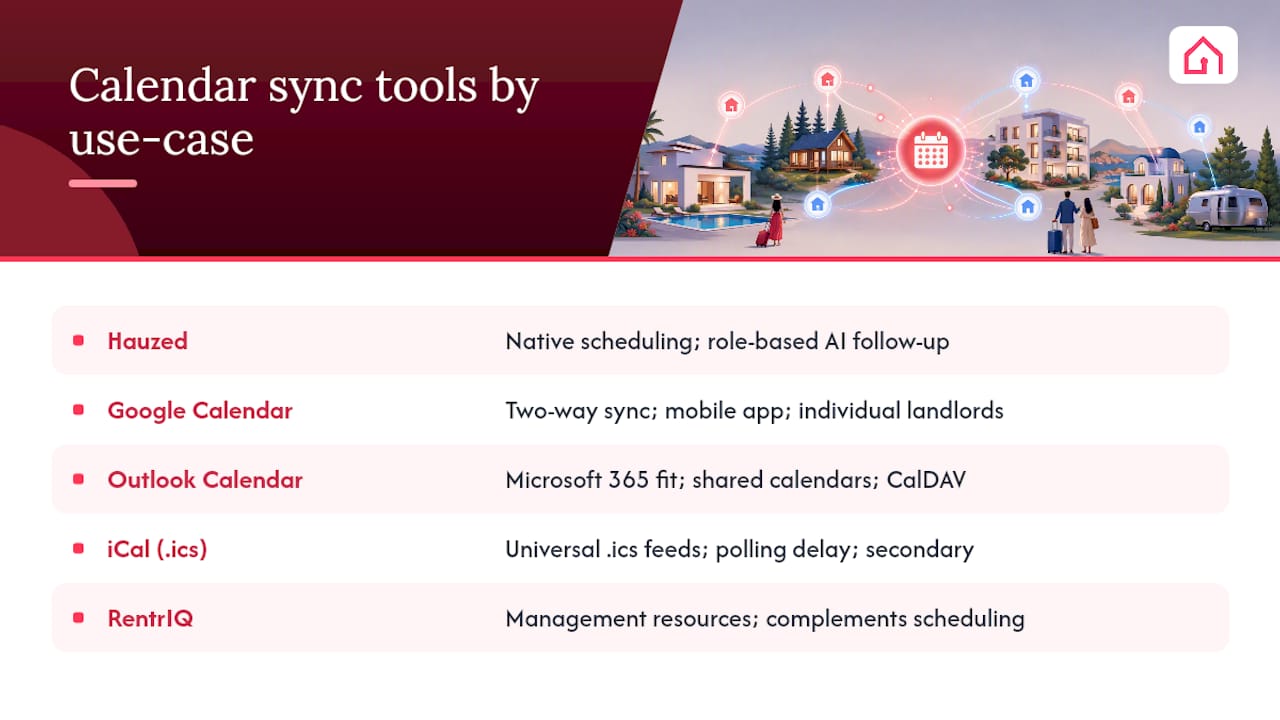
Hauzed handles visit scheduling, confirmations, cancellations, and team workflows natively. For landlords and agencies already using Hauzed to manage listings, it is the natural master scheduling source. The AI team tools support role-based access and automated follow-up, which reduces the manual work of keeping calendars current.
Google Calendar is the most widely used external calendar for individual landlords. Its two-way sync with scheduling platforms is reliable, and the mobile app makes it easy to check confirmed visits on the go.
Outlook Calendar suits agencies running on Microsoft 365. Shared mailboxes and shared calendars integrate naturally with team workflows, and the CalDAV protocol allows connections to non-Microsoft scheduling tools.
iCal (.ics) is not a tool in itself but a universal format. Every major calendar platform can export and subscribe to .ics feeds, making it a useful bridge when two systems do not have a direct integration. Its limitation is polling delay, so use it for secondary visibility rather than primary scheduling.
For broader property management context, RentrIQ's property management resources cover scheduling efficiency and vacancy reduction strategies that complement a well-configured calendar setup.
How to integrate calendar sync with popular property listing platforms
The core principle is the same regardless of which listing platform you use: your Hauzed calendar is the master, and any external platform gets a read-only view via .ics or a direct integration.
For platforms that support .ics subscription (which includes most major listing sites), export your Hauzed availability feed and paste the URL into the platform's calendar settings. The platform will poll for updates at its own interval, typically every few hours. This means availability shown on the listing platform may lag slightly behind Hauzed, so always direct serious enquiries to book through Hauzed directly rather than through the listing platform's own contact form.
For platforms with direct API integrations, check whether Hauzed supports a native connection. A direct API connection updates availability in near real-time and eliminates the polling delay that .ics introduces.
One practical rule: never allow a listing platform to write back to your master calendar. Read-only connections from listing platforms prevent a platform-side error from blocking your Hauzed availability. Keep write access restricted to Hauzed and your designated admin calendar account.
Why reliable calendar sync matters more than most landlords realise
A double booking is not just an inconvenience. It is a trust failure that costs you a tenant relationship, an agent's credibility, and sometimes a letting fee. The operational fix is straightforward: one master source, property-level rules, and a short weekly audit. But the business case goes further than avoiding embarrassment.
Consistent confirmations and timely reminders signal professionalism to prospective tenants. In a competitive rental market, the landlord or agency that responds quickly and confirms clearly wins the better tenant. Synchronised calendars are the infrastructure that makes that speed possible. Coordinated showing pipelines increase showing throughput and can reduce vacancy by improving the number of viewings agents complete per day. That is a direct revenue argument for getting the setup right.
Hauzed's visit scheduling, team workflows, and calendar connections are built around this logic: reduce the manual steps between a tenant's enquiry and a confirmed viewing, and the rest of the rental process moves faster.
Hauzed makes it straightforward to keep all your listing calendars in step
Scattered WhatsApp messages and manual diary entries are not a scheduling system. Hauzed gives landlords and agencies a single control point for visit scheduling, with property-specific availability rules, two-way Google and Outlook calendar connections, .ics export for secondary visibility, automated confirmations, and team role controls that prevent accidental overwrites.
The practical result: fewer double bookings, less time spent chasing confirmations, and a cleaner audit trail when something does go wrong. Agencies on the Max plan can apply bulk scheduling templates across their portfolio, cutting per-property setup to minutes. Solo landlords on Pro get the same calendar connection and auto-block features without needing a team account.
What is the quickest way to sync calendars across listings?
Enable Hauzed's visit scheduling feature, connect your Google or Outlook account with two-way access, and set property-level availability rules. The whole setup takes a short amount of time.
Why does my .ics calendar show outdated availability?
iCal feeds are polled at intervals by the subscribing calendar app, so there is always a delay between a change in Hauzed and its appearance in the .ics feed. Use a two-way Google or Outlook connection for time-sensitive properties and treat .ics as a secondary, read-only view.
How do I stop two agents from double-booking the same slot?
Enable auto-block mode at property level in Hauzed. Once a visit is confirmed, that slot closes immediately to further requests. Also restrict two-way calendar write access to a single admin account to prevent conflicting edits from individual agent calendars.
What should I do if my Google Calendar connection stops working?
Go to Hauzed integrations settings, disconnect the Google account, and reauthenticate. This resolves most permission failures, which typically occur after a password change or a Google security prompt. If the issue persists across multiple properties, collect your account ID, property ID, and the exact failure timestamp before contacting Hauzed support.
Can I manage multiple listings from one calendar view?
Yes. Connecting Hauzed to a single Google or Outlook calendar gives you a consolidated view of confirmed visits across all your properties. Agencies can also use a shared team calendar via CalDAV or company Outlook, with individual agents subscribing in read-only mode.